Set Up Email Forwarding for Namecheap Domains with InboxRelay
Step-by-step guide to configure email forwarding with InboxRelay for domains registered at Namecheap, including DNS settings and MX records.
TL;DR
Setting up email forwarding with Namecheap takes 10-15 minutes. You need to access Namecheap's advanced DNS settings, remove existing MX records, add InboxRelay's MX records, and then create forwarding rules in your InboxRelay dashboard.
Table of Contents
Why Use InboxRelay with Namecheap?
Namecheap is one of the most popular domain registrars, known for affordable domains and user-friendly management. With InboxRelay, you can set up custom email addresses for all your Namecheap domains without having to manage separate mailboxes. All emails sent to your InboxRelay-configured addresses are automatically forwarded to your existing personal mailbox. This way, you keep track of all incoming messages while managing only a single mailbox at no additional cost. In this guide, we assume you are already logged in to Namecheap and have one or more domains registered there.
Step 1: Add Your Domain in InboxRelay
- Register: First, create a free InboxRelay account.
- Add domain: After successful registration, click "Add domain" and follow the instructions. Enter the domain for which you want to set up email forwarding, without
wwworhttp://. Example:mybusiness.comnotwww.mybusiness.com. Then click next to proceed to the next step. - Forwarding: Now select the type of forwarding: You can choose between a "Single email address" or a "Catch-all" forwarding. With a single email address, you can specify a specific address to be forwarded (e.g., sales@mybusiness.com). A catch-all forwarding forwards all emails addressed to the domain, regardless of whether they are sent to contact@mybusiness.com or support@mybusiness.com, all emails will be forwarded to the same mailbox. Below that, enter your existing mailbox address in the input field "Send these emails to", to which all forwarded emails should be sent.
- Verify destination address: In the next step, InboxRelay sends a 5-digit verification code to the destination email address. This code must then be entered in InboxRelay to confirm that it is your email address.
- In the final step, all DNS records that you need to add in Namecheap will be displayed. Keep this page open - you will need these values in the following steps.
Step 2: Adjust Domain Settings in Namecheap
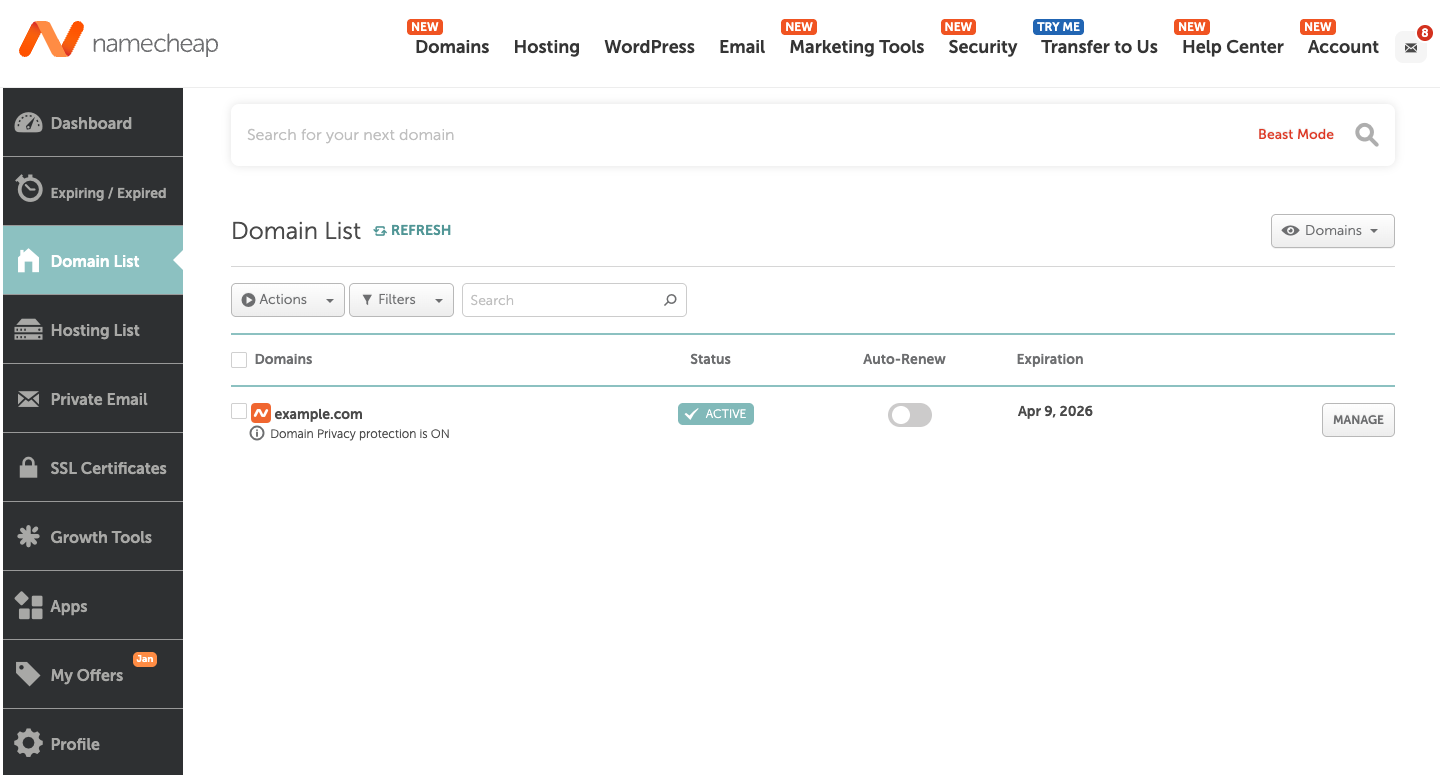
- Log in to Namecheap and access domain: Now open Namecheap.com in another browser window and log in with your Namecheap credentials. In the left menu bar, select "Domain List". Now find the entry for your domain for which you want to set up email forwarding and click the "MANAGE" button to access the domain settings.
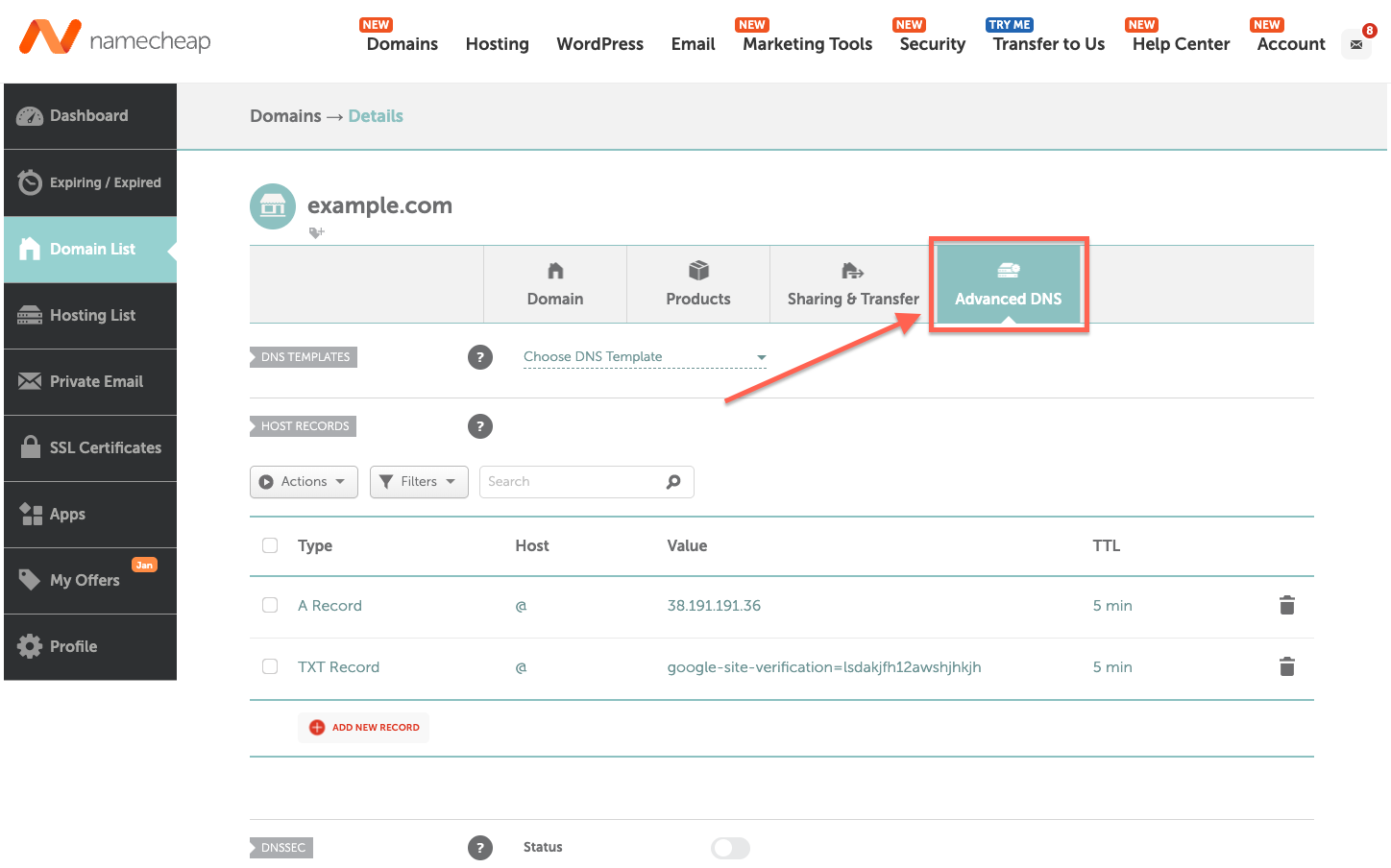
- Access DNS settings: You are now on your domain's settings pages. To make the necessary settings for your email forwarding for this domain, click "Advanced DNS" to access the advanced settings.
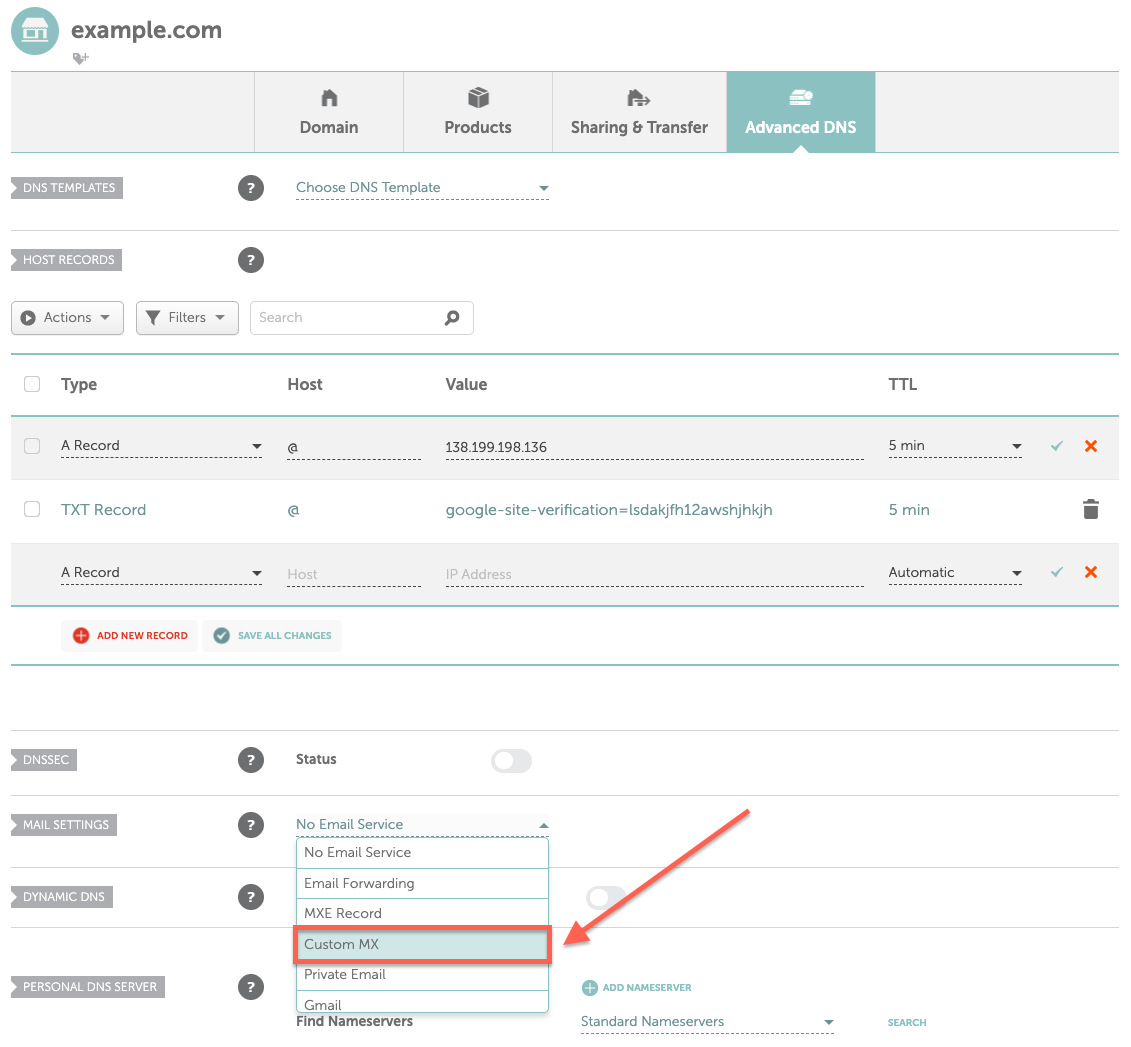
- Create new MX record: The MX record specifies which email server is responsible for a domain. For InboxRelay's email forwarding to be correctly handled, an MX record must be added to your domain. To do this, select Custom MX under Mail Settings:
- Enter InboxRelay MX record: The newly created record must now be filled with the correct values. Under the Host column, enter an @ symbol, for Value enter
mx01.inboxrelay.io, for Priority enter10, and for the TTL field, select5 mins. Then click SAVE ALL CHANGES to save the settings.

Test Email Forwarding
Before publishing your newly set up email forwarding, you should first test its functionality. Use a different email account (Gmail, Outlook, Yahoo, etc.) and compose a new email addressed to your new email forwarding address and send it. After a wait time of a few seconds to one minute, the email should be received and displayed in your destination mailbox. If the email is not displayed in the inbox, also check the Spam folder. Additionally, all forwarded emails are listed in your personal InboxRelay account and any forwarding issues are displayed.
Troubleshooting Common Issues
Emails Are Not Being Received
Problem: Test emails are not arriving in your destination mailbox.
Solutions:
-
Check DNS propagation:
- Use MXToolbox to verify your domain's MX record.
- Enter your domain in the Lookup everything field and click the adjacent button.
- Then check whether all displayed MX records are identical to the values entered in Step 2.
- If not, wait a little longer (up to 2 hours typically) and then check the forwarding again.
-
Check Spam/Junk folder:
- Forwarded emails sometimes initially land in spam
- Mark the forwarded email as "Not spam" and move it to the inbox. Subsequent received emails should no longer be marked as spam in the future.
-
Check InboxRelay logs:
- InboxRelay logs all received and forwarded emails.
- To view the logs, log in to your InboxRelay account and select your domain.
- In the "Emails" tab, you can view a log of all emails received by InboxRelay for the selected domain and their forwarding status.
Frequently Asked Questions
Where can I find the DNS settings for my domain in Namecheap?
Log in to Namecheap, go to your Domain List, click "Manage" next to your domain, and then select the "Advanced DNS" tab. Here you can add MX and TXT records for email forwarding.
How long does DNS propagation take with Namecheap?
Namecheap DNS changes are usually propagated within 30 minutes to 2 hours, but in some cases it may take up to 48 hours. You can check the propagation status using online DNS lookup tools.
Does email forwarding with InboxRelay cost anything?
No. Forwarding emails from your domains to your personal inbox through InboxRelay is free for you.